Jak przyciąć wideo online, nie tracąc ujęcia
Dowiedz się, jak przyciąć film online, wybrać odpowiednią klatkę, uniknąć ucinania ważnych akcji i wyeksportować czysty klip gotowy do użytku społecznościowego.

Kevin Li
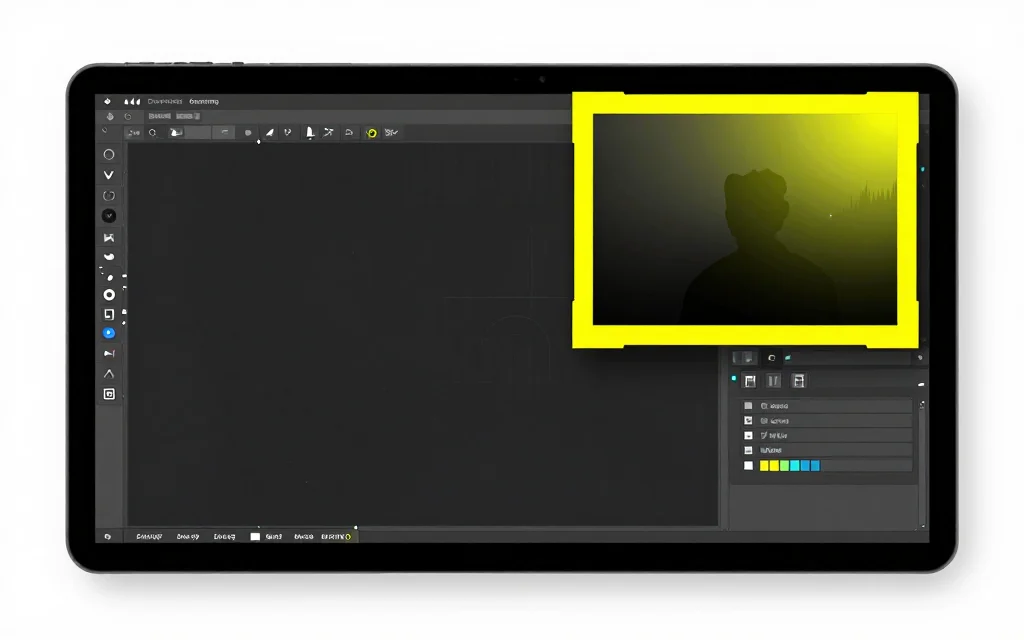
Przycinanie filmu to nie tylko zmiana kształtu ramki. Ty decydujesz, co pozostanie widoczne, a co usunięte.
Ma to znaczenie w przypadku klipów z gadającymi głowami, demonstracji produktów, nagrań ekranu i filmów społecznościowych, w których oryginalna klatka nie pasuje do platformy. Dobre kadrowanie pozwala zachować obiekt, podpisy i ważny ruch w końcowej klatce.
Przytnij a zmień rozmiar
Przycinanie usuwa część klatki wideo. Zmiana rozmiaru zmienia płótno wyjściowe. Są one ze sobą powiązane, ale rozwiązują różne problemy.
Użyj Przytnij wideo, jeśli chcesz wybrać konkretną część obrazu i wyeksportować tylko ten obszar. Użyj Zmiana rozmiaru wideo, jeśli chcesz, aby cały film był widoczny, dopasowując go do rozmiaru platformy, często z rozmytym lub jednolitym tłem.
Krok 1: Wybierz ostateczny kształt
Zacznij od platformy lub miejsca docelowego. Klip pionowy zwykle potrzebuje 9:16. Kwadratowy słupek wykorzystuje 1:1. Film z kanału może mieć format 4:5. Eksport panoramiczny wykorzystuje format 16:9.
Jeśli nie jesteś pewien, wybierz kształt w oparciu o główną powierzchnię oglądania. Klipy wyświetlane telefonem zwykle wymagają pionowego kadrowania. Samouczki na komputery stacjonarne i filmy YouTube zwykle wymagają kadrowania panoramicznego.
Swobodne kadrowanie przydaje się, gdy wystarczy usunąć niechcianą krawędź, obszar znaku wodnego lub pustą przestrzeń. Zablokowany współczynnik jest lepszy, gdy ostateczne miejsce docelowe przesyłania oczekuje określonego kształtu.
Krok 2: Umieść ramkę przycinania wokół obiektu
Otwórz film w bezpłatne narzędzie do przycinania wideo online, prześlij plik i przeciągnij pole przycinania na część, którą chcesz zachować.
Trzymaj twarze, dłonie, szczegóły produktu i podpisy z dala od krawędzi. Platformy mogą dodawać interfejs użytkownika na górze filmu, a widzowie mogą oglądać go na małych ekranach. Kadr, który wygląda dobrze w podglądzie na komputerze, na telefonie może wydawać się ciasny.
Jeśli głośnik się poruszy, przejrzyj wideo przed eksportem. Upewnij się, że kadrowanie nadal działa poza pierwszą klatką.
W przypadku wywiadów lub podcastów sprawdź oba głośniki. Przycięcie skupiające gospodarza może odciąć gościa, gdy rozmowa się zmieni. W przypadku nagrań ekranu sprawdź menu, ruch kursora i dowolny tekst, który widz musi przeczytać. W przypadku demonstracji produktów, jeśli to możliwe, trzymaj produkt i działanie dłoni lub wskaźnika w tej samej ramce.
W razie wątpliwości przytnij nieco szerzej. Zawsze możesz później stworzyć bardziej zwięzłą wersję, ale zbyt ciasne przycięcie może spowodować usunięcie kontekstu, który jest trudny do odtworzenia.
Na tym polega główna różnica między czystym plonem a niespokojnym plonem: czysty plon zapewnia fotografowanej osobie swobodę ruchu. Jeśli czujesz, że ciągle sprawdzasz, czy twarz, dłoń, kursor lub podpis zostaną przycięte, prawdopodobnie pole jest zbyt ciasne.
Krok 3: Uważaj na podpisy i nakładki
Jeśli film ma już wypalone napisy, pozostaw je w kadrze. Przycięcie może spowodować obcięcie pierwszego lub ostatniego słowa w wierszu, jeśli podpisy znajdują się blisko krawędzi.
Jeśli planujesz dodać podpisy po przycięciu, zostaw wystarczająco dużo bezpiecznego miejsca u dołu. Jest to szczególnie ważne w przypadku klipów pionowych, w których interfejs platformy może zakrywać części dolnej klatki.
W przypadku tworzenia napisów po przycięciu użyj przycisku automatyczny generator napisów, gdy klatka będzie już ostateczna.
Krok 4: Eksportuj i przeglądaj
Wyeksportuj krótki test, jeśli narzędzie to obsługuje, lub chociaż przejrzyj pobrany plik przed publikacją. Sprawdź pierwsze kilka sekund, fragment z ruchem i zakończenie.
Eksport wideo za pomocą przeglądarki może zająć trochę czasu, zwłaszcza w przypadku większych plików. Pozostaw kartę otwartą podczas eksportowania. Jeśli Twój film źródłowy jest bardzo duży, bardziej niezawodny może być dedykowany edytor.
Sprawdź także wyeksportowany plik w miejscu, w którym będzie on używany. Kadr może wyglądać na czysty w odtwarzaczu stacjonarnym, ale w pionowym obrazie mobilnym może wydawać się zbyt ciasny. Jeśli klip zostanie opublikowany z napisami, obejrzyj go z włączonymi napisami lub wypalonymi, zanim uznasz, że jest ukończony.
Typowe błędy przy przycinaniu
Kadrowanie wyłącznie z ramki otwierającej jest ryzykowne. Osoba może się pochylić, nagranie na ekranie może się przewinąć lub produkt może się poruszyć. Zawsze przeglądaj więcej niż jeden moment.
Następnym problemem jest zbyt ciasne przycinanie. Ciasne kadrowanie może wyglądać dramatycznie, ale nie pozostawia miejsca na podpisy, gesty lub interfejs użytkownika platformy.
Trzecim błędem jest użycie kadrowania, gdy zmiana rozmiaru byłaby lepsza. Jeśli chcesz, aby cały film był widoczny, nie przycinaj treści. Zamiast tego użyj rozmycia lub zmiany rozmiaru jednolitego tła.
Kiedy nie przycinać
Nie przycinaj, jeśli liczy się cała klatka, np. samouczek ekranowy z ważnymi elementami sterującymi po bokach. Zamiast tego użyj zmiany rozmiaru z dopełnieniem.
Nie przycinaj cudzego filmu, chyba że masz prawa do jego edycji i ponownej publikacji. Kadrowanie może zmienić kontekst, więc używaj go odpowiedzialnie.
Powiązane narzędzia i przewodniki
- Przytnij ramkę za pomocą Przytnij wideo
- Zachowaj widoczność całej klatki za pomocą Zmiana rozmiaru wideo
- Dodaj podpisy za pomocą automatyczny generator napisów
- Twórz klipy z długich filmów za pomocą Długie wideo do klipów
- Poznaj rozmiary platform w najlepszy rozmiar wideo dla Reels i Shorts
Często zadawane pytania
Do czego służy przycinanie wideo?
Kadrowanie powoduje usunięcie części ramki i eksportowanie tylko wybranego obszaru.
Czy przycinanie jest tym samym, co zmiana rozmiaru?
Nie. Przycinanie powoduje usunięcie zawartości. Zmiana rozmiaru zmienia rozmiar wyjściowy lub płótno.
Jakiego współczynnika proporcji powinienem użyć dla TikTok lub Shorts?
W przypadku większości krótkich filmów w formacie pionowym użyj formatu 9:16.
Czy mogę przyciąć wideo w przeglądarce?
Tak, w przypadku plików dekodowanych przez przeglądarkę. Eksportowanie bardzo dużych filmów może zająć więcej czasu.
Czy powinienem przyciąć przed dodaniem napisów?
Zwykle tak. Najpierw sfinalizuj ramkę, a następnie dodaj podpisy tak, aby pasowały do widocznego obszaru.