Publishing context
Name the Short from what it actually says
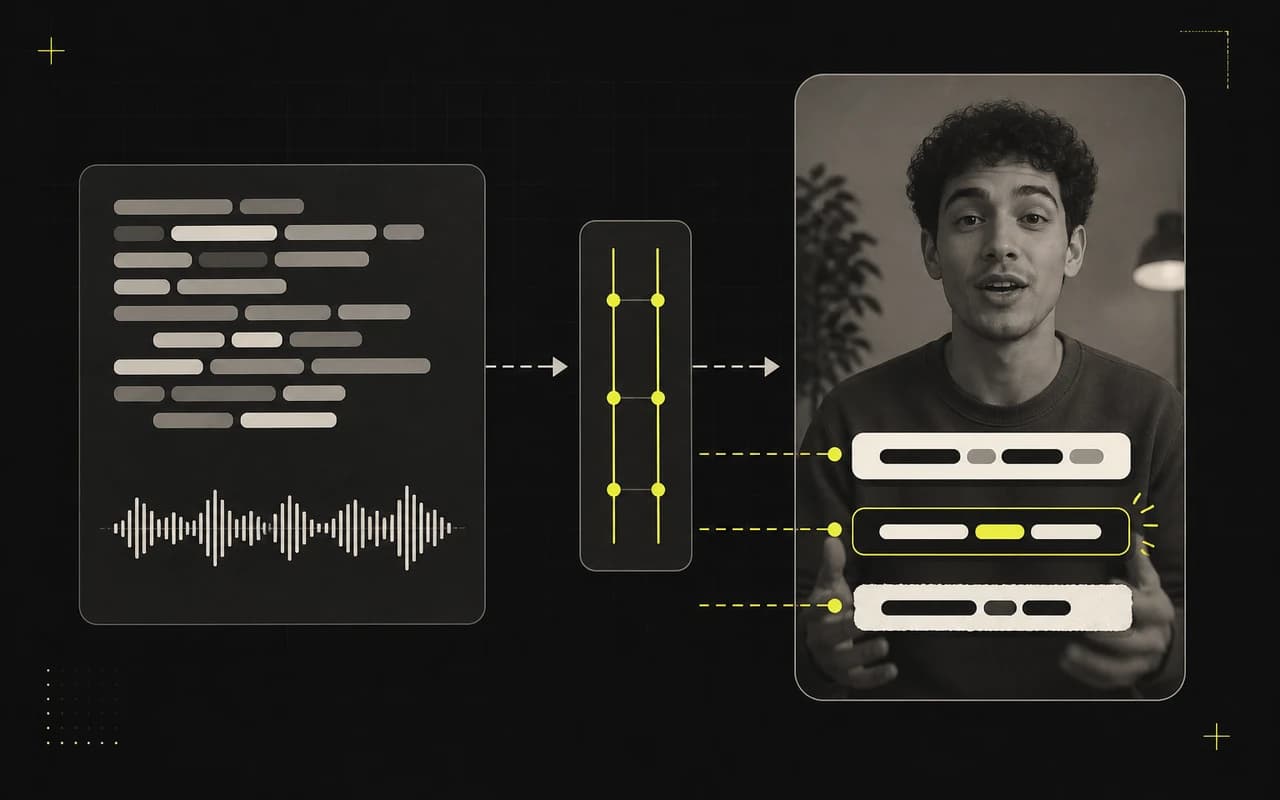
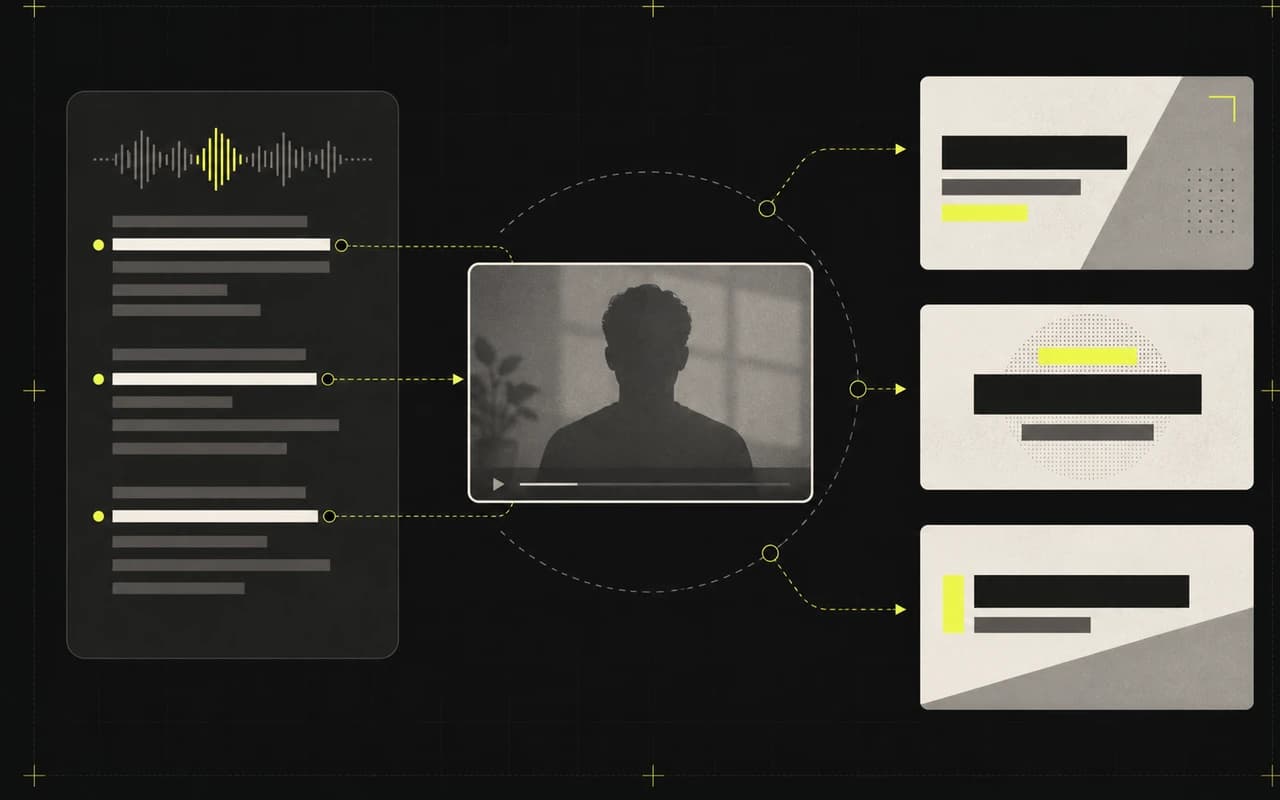
CaptionBolt uses the transcript to propose a concise YouTube Shorts title that stays on the video's topic.
This publishing title belongs to the Social posts workspace. It is separate from the optional Headline shown inside the video.
No credit card required
Built from your transcript.
Draft the publishing title beside its description.
Keep, rewrite, or discard every draft.
Publishing context
CaptionBolt uses the transcript to propose a concise YouTube Shorts title that stays on the video's topic.
A separate control
The Social posts title is copied to YouTube. The optional Editor Headline is a visual element inside the rendered video.
Manual publishing
The draft remains editable and never changes the rendered video or publishes to YouTube automatically.
How it works
Turn the transcript into a useful first draft, check every field, and copy only what you approve.
Create the transcript.
Draft the Shorts packaging.
Refine the publishing title.
Paste it into YouTube.
Complete the post
Use the same reviewed transcript to finish the rest of your publishing copy.
Write your own opening line or generate a candidate, then edit, style, position, or remove it before export.
Learn moreCreate editable TikTok and Instagram captions plus a YouTube Shorts title, description, and tags. Nothing publishes or schedules automatically.
Learn moreCreate a compact description for a Short, review every paragraph, and add the links or call to action only you can provide.
Learn moreQuestions
No. This is a YouTube Shorts publishing title. The optional on-video Headline is edited separately in the Text Editor.
Yes. Treat it as a first draft and edit or discard it before copying it to YouTube.
No. CaptionBolt prepares editable copy but does not connect to or publish on YouTube.
Start from the transcript
Start from the transcript, then make the final wording yours.
No credit card required