Como adicionar legendas a um vídeo
Um guia prático para adicionar legendas a um vídeo, escolher entre legendas embutidas e arquivos de legenda e verificar o tempo antes de publicar.

Kevin Li
Adicionar legendas a um vídeo não é apenas uma etapa final de polimento. Isso muda a forma como as pessoas assistem, folheiam e entendem seu conteúdo quando o som está desligado ou o falante está difícil de acompanhar.
O fluxo de trabalho básico é simples: crie uma transcrição, transforme-a em blocos de legenda sincronizados, revise o tempo, escolha se deseja legendas embutidas ou um arquivo de legenda e depois exporte. Os detalhes são importantes, porque uma legenda incorreta pode fazer com que um bom vídeo pareça confuso.
Comece com o tipo de legenda que você precisa
Antes de fazer upload de qualquer coisa, decida o que você está tentando publicar.
Se você estiver postando um vídeo curto no TikTok, Reels ou Shorts, provavelmente vai querer legendas embutidas. Elas são renderizadas diretamente no MP4, de modo que as legendas ficam visíveis em todos os lugares, mesmo quando a trilha de legendas da plataforma está oculta.
Se você estiver enviando para o YouTube, editando em Premiere Pro ou entregando um arquivo para outro editor, você pode querer um arquivo SRT ou VTT. Isso mantém as legendas separadas do vídeo. É mais fácil revisar posteriormente, traduzir ou usar como trilha de acessibilidade.
Não existe uma única escolha correta. Um criador que faz clipes geralmente deseja legendas com estilo visível. Uma equipe que prepara um replay de webinar pode querer um MP4 legendados e um arquivo SRT.
Um fluxo de trabalho prático
Uma forma comum de adicionar legendas é:
- Envie o vídeo para um gerador automático de legendas.
- Deixe a ferramenta transcrever a fala e criar legendas sincronizadas.
- Leia as legendas antes de exportar.
- Corrija nomes, termos de produto, pontuação e quebras de frase.
- Escolha um estilo de legenda adequado ao vídeo.
- Exporte um MP4 legendado, um arquivo SRT ou ambos.
É fácil pular a revisão, mas é nela que problemas evidentes de texto, tempo e quebras de linha são encontrados. Legendas automáticas reduzem a digitação e a sincronização manuais. Mesmo assim, ortografia, nomes, pontuação e naturalidade das quebras precisam de uma revisão humana.
O que verificar antes de exportar
A sincronização vem primeiro. As legendas devem aparecer quando as palavras são faladas, sem atraso perceptível. Se um bloco permanecer na tela depois que o falante segue em frente, o espectador começa a ler informações antigas enquanto ouve novas informações.
O comprimento da linha também é importante. Em vídeos curtos, as legendas geralmente são mais fáceis de ler quando são divididas em frases curtas. Uma frase completa de três linhas pode cobrir muito do quadro, especialmente no celular.
Fique atento a conflitos de tela. Se o vídeo tiver gráficos no terço inferior, rótulos de produtos ou um rosto próximo à parte inferior do quadro, mantenha as legendas afastadas dessa área. Um estilo de legenda pode parecer bom isoladamente e ainda assim ser errado para uma cena específica.
Por fim, dê atenção especial à primeira linha. Se ela estiver errada, atrasada ou pequena demais, a pessoa começa com palavras incorretas ou com um problema de leitura evitável.
Quando revisamos clipes legendados, é nessa parte que diminuímos o ritmo. Uma exportação pode passar numa revisão rápida de ortografia e ainda parecer errada porque o primeiro bloco aparece tarde, o nome de quem fala está incorreto ou a legenda cobre o único objeto importante do quadro.
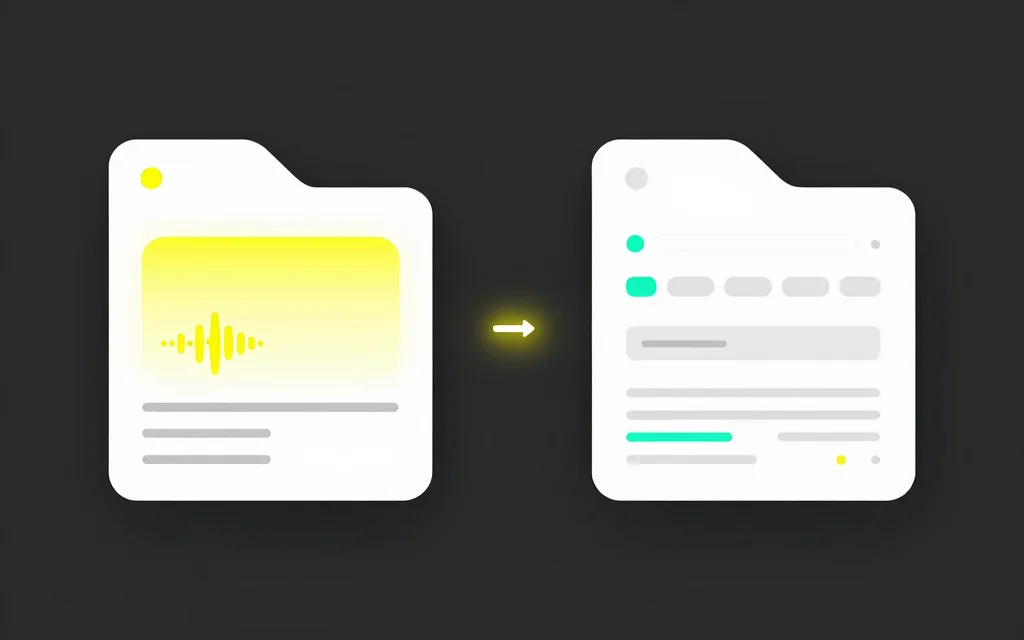
Legendas embutidas versus SRT ou VTT
As legendas embutidas fazem parte da imagem do vídeo. Elas funcionam melhor para clipes sociais, anúncios e vídeos onde você deseja controlar o estilo visual.
Os arquivos SRT e VTT são faixas de legenda separadas. Elas são melhores para fluxos de trabalho de upload, acessibilidade, tradução, arquivamento e edição para o YouTube. SRT é o formato de uso geral mais seguro. VTT é comum na web.
Se você já possui um arquivo de legenda e precisa apenas alterar os formatos, use conversor de legendas em vez de transcrever novamente o vídeo. Se você precisar corrigir tempos ou editar blocos diretamente, use editor de legendas online.
Erros comuns
Um erro comum é tratar legendas como uma transcrição colada sobre o vídeo. Boas legendas são unidades de leitura sincronizadas e devem acompanhar o ritmo da fala.
Outro erro é usar legendas muito pequenas. Um vídeo pode parecer bom em uma prévia no desktop e ser difícil de ler no celular. Sempre visualize no tamanho em que as pessoas realmente assistirão.
Não cubra informações visuais importantes. Se o falante estiver demonstrando um produto, mostrando um código ou apontando para algo na tela, as legendas podem precisar ser movidas ou ficar mais compactas.
Tenha cuidado também com as legendas automáticas da plataforma. Elas são convenientes, mas você não pode controlar o estilo, o tempo ou o formato de exportação. Se as legendas fizerem parte do visual criativo, gere-as antes do upload.
Quando não adicionar legendas embutidas
Legendas embutidas nem sempre são a saída correta. Se o vídeo for traduzido para vários idiomas, será mais fácil gerenciar arquivos de legenda separados. Se um editor ainda precisar cortar o vídeo, mantenha as legendas como SRT ou VTT até que a edição seja bloqueada.
Para vídeos educacionais longos, as faixas de acessibilidade podem ser mais importantes do que as legendas estilizadas. Nesse caso, crie um arquivo SRT ou VTT limpo e carregue-o com o vídeo.
Perguntas frequentes
Posso adicionar legendas a um vídeo gratuitamente?
Sim. Você pode usar ferramentas online gratuitas em fluxos curtos, especialmente se só precisar gerar, editar ou converter arquivos de legenda. Para projetos maiores, exportações em lote e vídeos com legendas estilizadas, um fluxo dedicado pode oferecer controles mais repetíveis.
Qual é o melhor formato de legenda para vídeo?
SRT é o padrão mais seguro. VTT é melhor para players web. As legendas embutidas são melhores quando você deseja que as legendas fiquem visíveis em todas as plataformas.
Preciso escrever legendas manualmente?
Geralmente não. Você pode começar com a transcrição automática e depois revisar e corrigir o resultado. A escrita manual ainda é útil para nomes, termos técnicos e quebras de linha estranhas.
As legendas devem ter uma ou duas linhas?
Para vídeos curtos, uma ou duas linhas curtas geralmente são melhores. Evite blocos grandes que cubram o assunto ou obriguem as pessoas a ler muito de uma vez.
O que devo fazer depois de adicionar legendas?
Se o vídeo for um clipe curto, exporte o MP4 legendado. Se o vídeo fizer parte de um fluxo de trabalho maior, mantenha também o arquivo SRT ou VTT. Você pode usar transcrição de vídeo, edição de legendas ou vídeo longo para clipes dependendo do que vier a seguir.