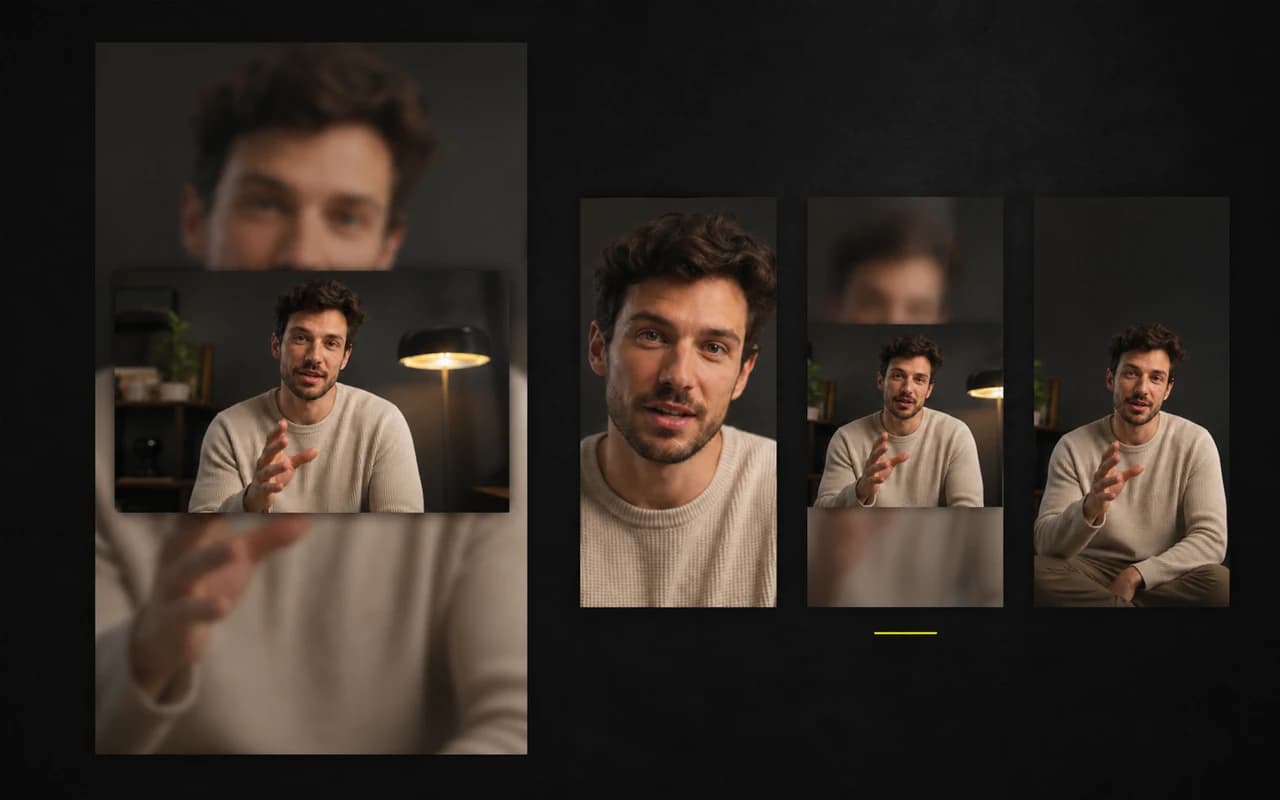
Format presets
Give every destination the frame it expects
Move from the original composition to vertical, square, portrait, or landscape without guessing dimensions.
Keep the composition you recorded or reshape it for the feed. Choose the aspect ratio and background treatment while you review the speaker, captions, and message together.
No credit card required

Choose a familiar social format
Move from Original to 9:16, 1:1, 4:5, or 16:9.
Control how the source fits
Reposition the video or keep the full frame with a blurred or solid background.
Keep the whole finish together
Shape the frame alongside captions and the rest of the edit.
Format presets
Move from the original composition to vertical, square, portrait, or landscape without guessing dimensions.
Three background modes
Choose the treatment that keeps the speaker, captions, and opening message feeling deliberate.
Keep finishing in one place
Add only what this recording needs without moving the work into a complicated multi-track editor.
CaptionBolt turns your recording into timed, styled captions that stay clear with or without sound—and remain editable before export.
Learn moreTighten the beginning or end, remove an interior section, or clean longer pauses. Captions stay with the speech you keep, without turning the edit into a multi-track project.
Learn moreAdd a clean progress cue that follows the final cut, matches the visual system, and stays out of the message's way.
Learn moreQuestions
No. New caption projects keep the Original aspect ratio until you choose a Resize format.
Use Original, 9:16, 1:1, 4:5, or 16:9, then preview the resulting frame before export.
Reposition the source or switch to a blurred or solid background so the full frame remains visible.
Finish the next take
Choose the format, review the composition, and finish the rest of the video in the same workspace.
No credit card required
We use cookies to remember preferences, measure site performance, and improve CaptionBolt.